roos-fs tasks #488
open

Impliment the new logic for the Statuses on mobile
0%
Description
Underneath you would find the flow that is to be implimented on the backend side. THe same have to be applicabe on the Mobile end.
ATTENTION
Make sure that the old services created before the new feature release are still working.
SERVICES and TASKS FLOW desciption
the service when created receives the status CREATED
the tasks in this service receive the state CREATED
the service is then manually transferred to the stated BOOKED (the user is OBLIGED to set the date - it is mandatory. P.S. reuse the same form that was used for the task when set to the boked state)
the tasks are AUTOMATICALLY change the status to OPEN
from the OPEN state the user can set the planned date (OPTIONALLY)
from the OPEN state with or without a date the user can set the task in status IN PROGRESS
from IN PROGRESS the tasks can be set to COMPLETED
the service could be set to COMPLETED only if all Tasks are in CANCELLED or COMPLETED state (there could be 1 in cancelled and 1 in completed so simply all tasks in one of the states)
The task could be cancelled from any status starting from the OPEN
Service can be cancelled at any time and the tasks would be outo cancelled
FURTHER REQUIREMENTS
Adjust the API for mobile and remove unnessesary endpoints. The main point is that the API for the mobile is mirrowing the Behaviour in web.
Expected behaviour
cancellation logic remain intact
completion triggers the report creation
activity log remains the same
data validations from the tasks is removed
all views of the tasks adn services remain the same
old statuses are removed if not used
All validations inside of the taks remains
Files
 Updated by Victoria Grishkova 9 months ago
- Status changed from Open to In progress
Updated by Victoria Grishkova 9 months ago
- Status changed from In progress to In review
 Updated by Vadim Pariev 8 months ago
- Status changed from In review to Deployed (QA)
 Updated by Olena Tretjakova 8 months ago
· Edited
Updated by Olena Tretjakova 8 months ago
· Edited
- File .trashed-1763883376-Screenshot_2025-10-24-09-56-41-43_334366aa60c95a830342eca788ba1737.jpg .trashed-1763883376-Screenshot_2025-10-24-09-56-41-43_334366aa60c95a830342eca788ba1737.jpg added
- File .trashed-1763883376-Screenshot_2025-10-24-10-06-00-16_334366aa60c95a830342eca788ba1737.jpg .trashed-1763883376-Screenshot_2025-10-24-10-06-00-16_334366aa60c95a830342eca788ba1737.jpg added
- File .trashed-1763883376-Screenshot_2025-10-24-10-14-30-63_334366aa60c95a830342eca788ba1737.jpg .trashed-1763883376-Screenshot_2025-10-24-10-14-30-63_334366aa60c95a830342eca788ba1737.jpg added
- File Screenshot_2025-10-24-10-46-09-07_334366aa60c95a830342eca788ba1737.jpg Screenshot_2025-10-24-10-46-09-07_334366aa60c95a830342eca788ba1737.jpg added
- File Screenshot_2025-10-24-10-51-59-58_334366aa60c95a830342eca788ba1737.jpg Screenshot_2025-10-24-10-51-59-58_334366aa60c95a830342eca788ba1737.jpg added
- File Screenshot_2025-10-24-10-54-19-03_334366aa60c95a830342eca788ba1737.jpg Screenshot_2025-10-24-10-54-19-03_334366aa60c95a830342eca788ba1737.jpg added
- File Screenshot_2025-10-24-11-07-41-33_334366aa60c95a830342eca788ba1737.jpg Screenshot_2025-10-24-11-07-41-33_334366aa60c95a830342eca788ba1737.jpg added
- File Screenshot_2025-10-24-11-15-40-23_334366aa60c95a830342eca788ba1737.jpg Screenshot_2025-10-24-11-15-40-23_334366aa60c95a830342eca788ba1737.jpg added
- File Screenshot_2025-10-24-11-23-26-59_334366aa60c95a830342eca788ba1737.jpg Screenshot_2025-10-24-11-23-26-59_334366aa60c95a830342eca788ba1737.jpg added
- File Screenshot_2025-10-24-11-24-53-06_334366aa60c95a830342eca788ba1737.jpg Screenshot_2025-10-24-11-24-53-06_334366aa60c95a830342eca788ba1737.jpg added
Environment: Staging.
Actual Result:
- All Statuses changed according expected result.
- When 'Canceled' is selected for a task, the 'Cancellation Reason' window appears. After selecting a reason, the 'Confirm the Cancellation' button should be enabled (except in the case when 'Other' is selected as the reason). However, in reality, the 'Confirm the Cancellation' button becomes enabled only after a comment is entered in the 'Comment' field.
Expected Result:
- The service status can be changed from 'Created' to 'Booked' (setting a date in the 'Set Date' field is required).
- The task automatically receives the 'Open' status when the corresponding service gets the 'Created' status.
- The task status can be changed from 'Open' to 'Set Planned Date' (setting a date in the 'Set Date' field is required).
- The task status can be changed from 'Open' to 'In Progress'.
- The task status can be changed from 'Set Planned Date' to 'In Progress'.
- The task status can be changed from 'In Progress' to 'Completed' (if the checklist related to this task is completed).
- The task status can be changed from 'Open' to 'Canceled'.
- The task status can be changed from 'Set Planned Date' to 'Canceled'.
- The task status can be changed from 'In Progress' to 'Canceled'.
10.The service status can be changed from 'Booked' to 'Completed' (if all related tasks have the status 'Completed' or 'Canceled'). - The service status can be changed from 'Created' to 'Canceled'.
- The service status can be changed from 'Booked' to 'Canceled'.
Preconditions:
- Create the 'Task Statuses in mobile' Task Template with one of the boolean field in checkbox. https://screenrec.com/share/PFAhnmxcp4
Steps to Reproduce:
Task statuses: Created → Opened → Set Planned Date → In Progress → Completed
Service statuses: Created → Set Planned Date → Completed
- Create the service (Service ID: 24532, Vehicle VIN: OLENA121212121212, Task ID: ). Status – Created.
https://screenrec.com/share/h1ZerBSVIQ
https://screenrec.com/share/LrZaC8Vg0M
Task ID: 42771, Status – Created.
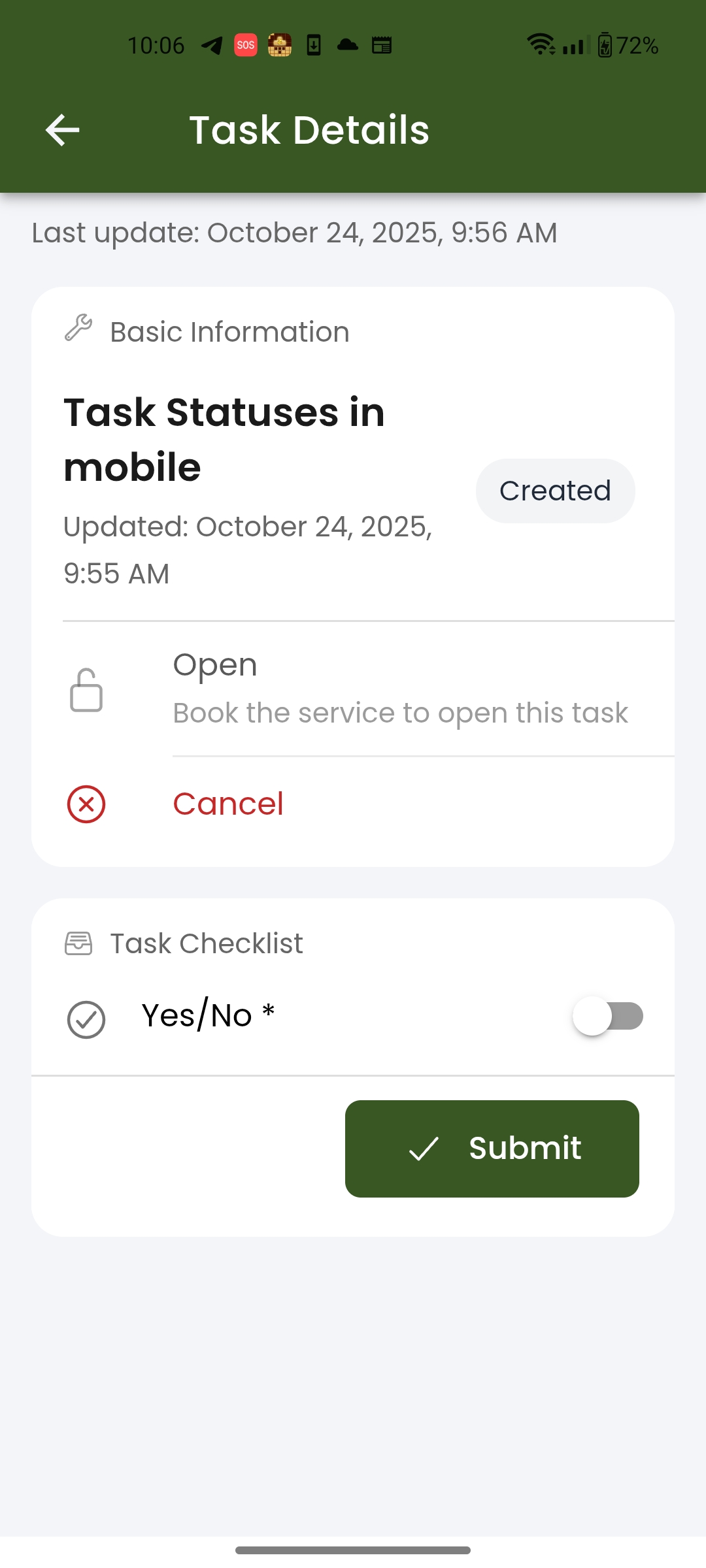
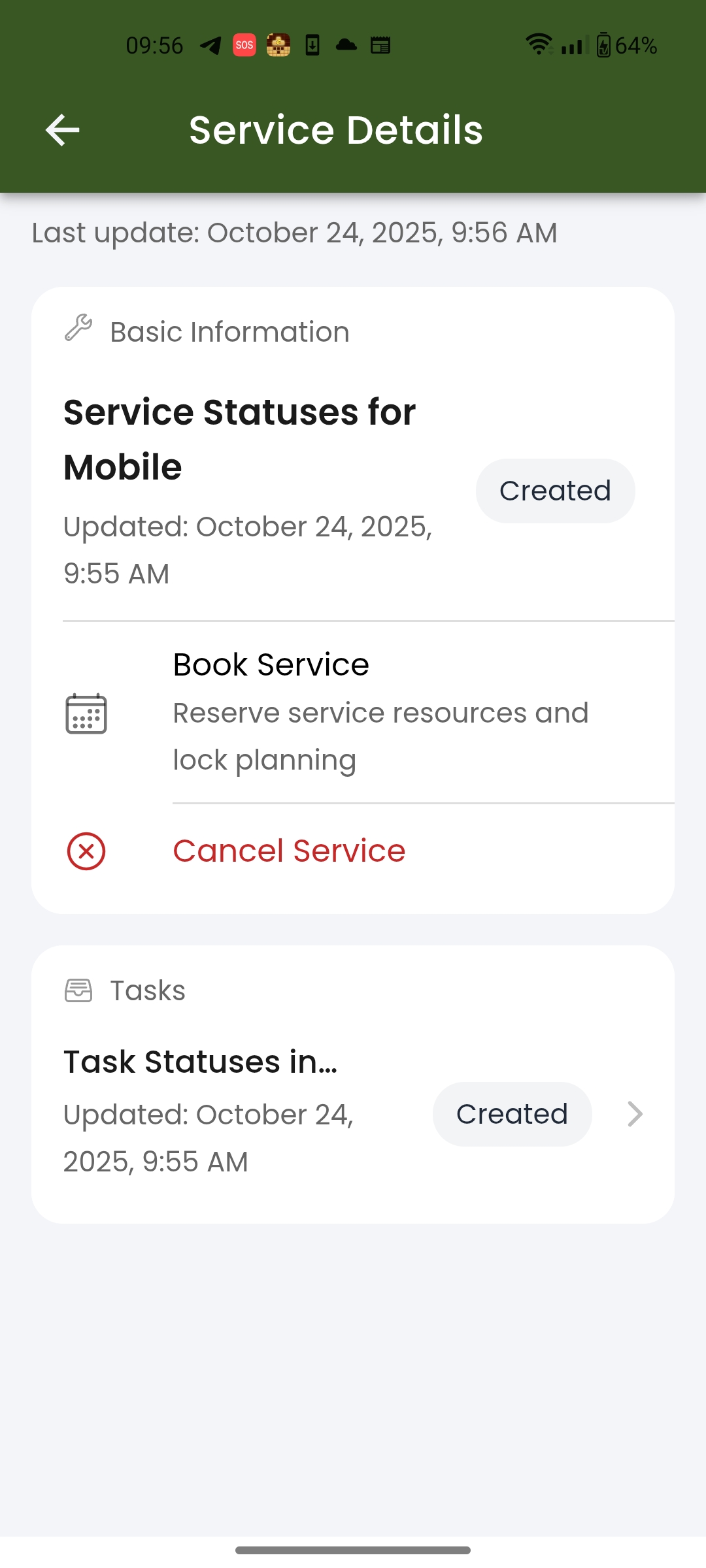
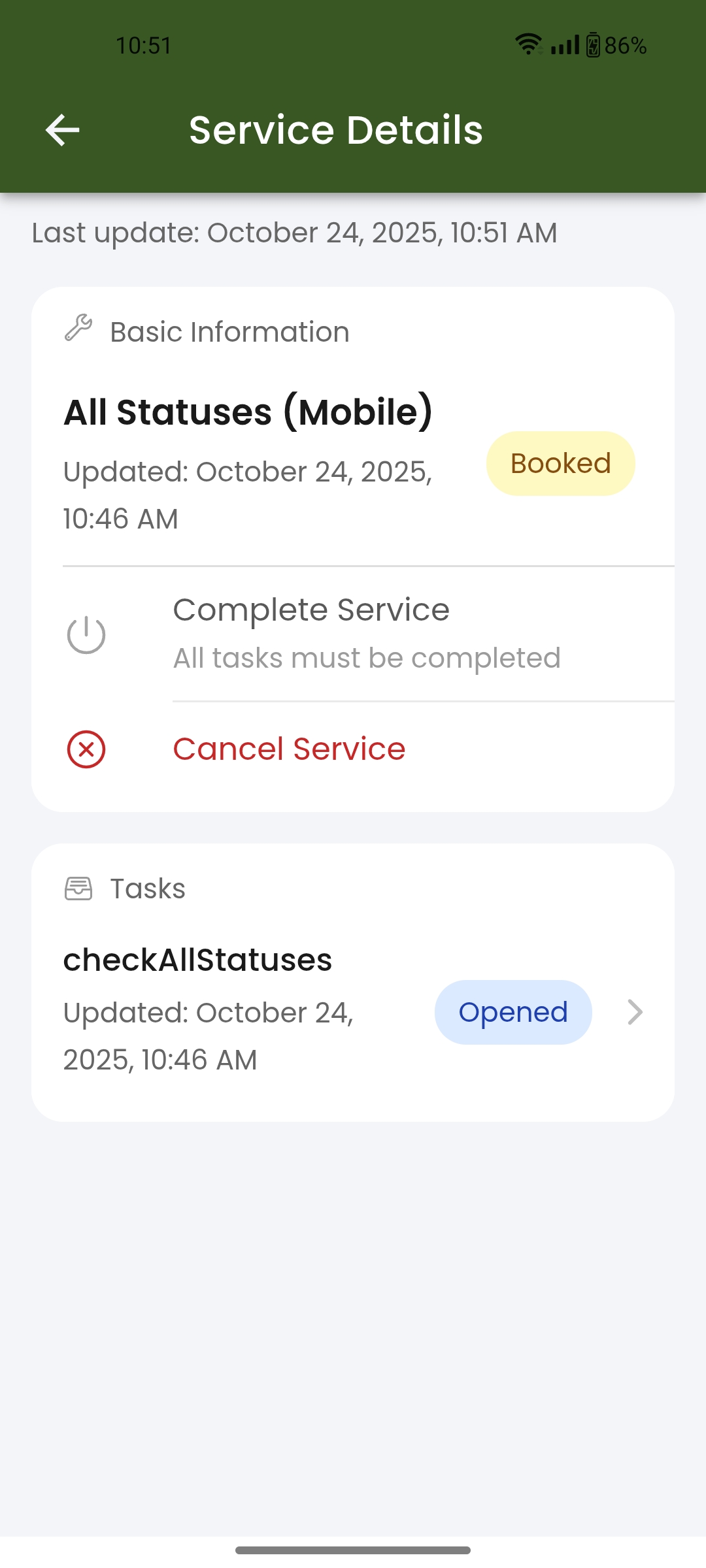
https://screenrec.com/share/SU90gLdkRM - Open the mobile build. Find the vehicle with VIN: OLENA121212121212. Open the task 'All Statuses (Mobile)', Status: 'Created'.
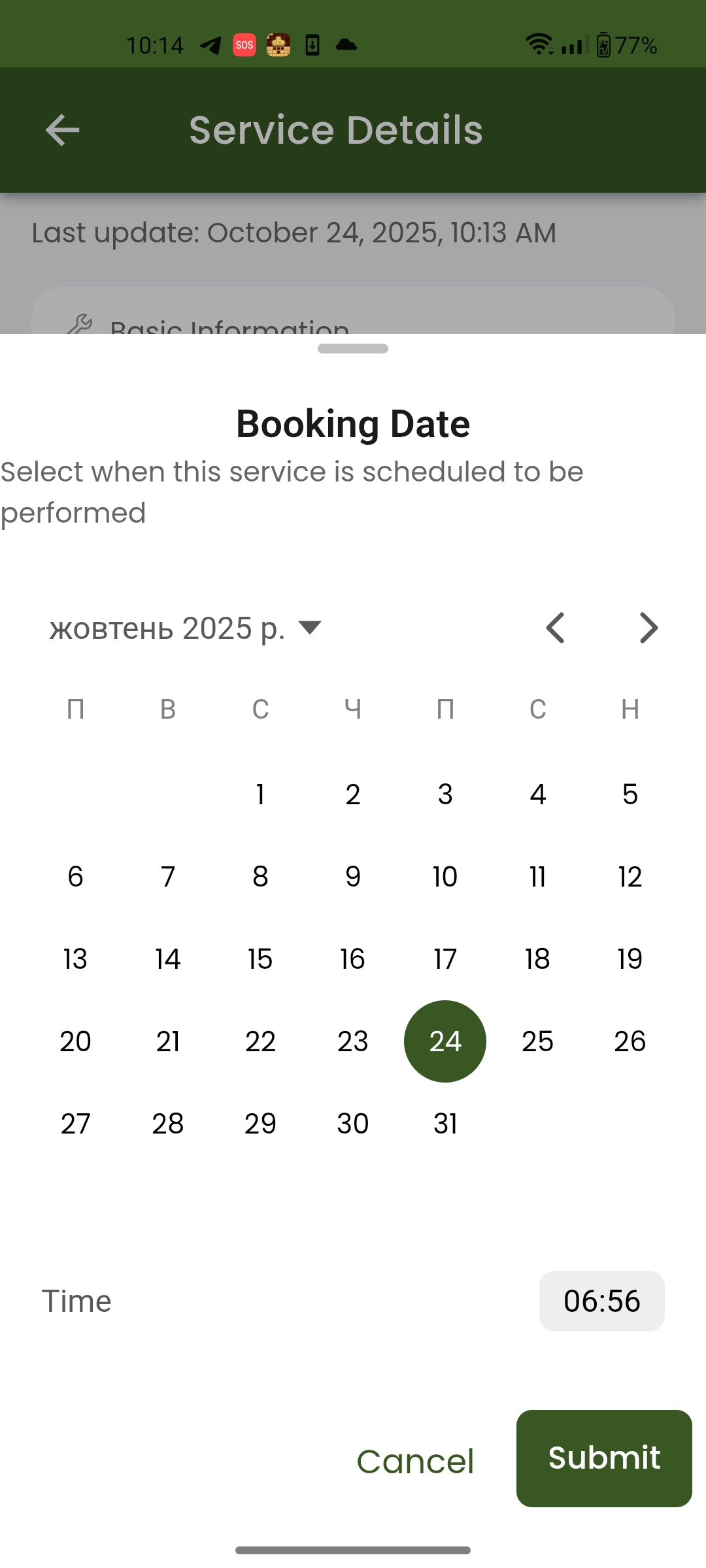
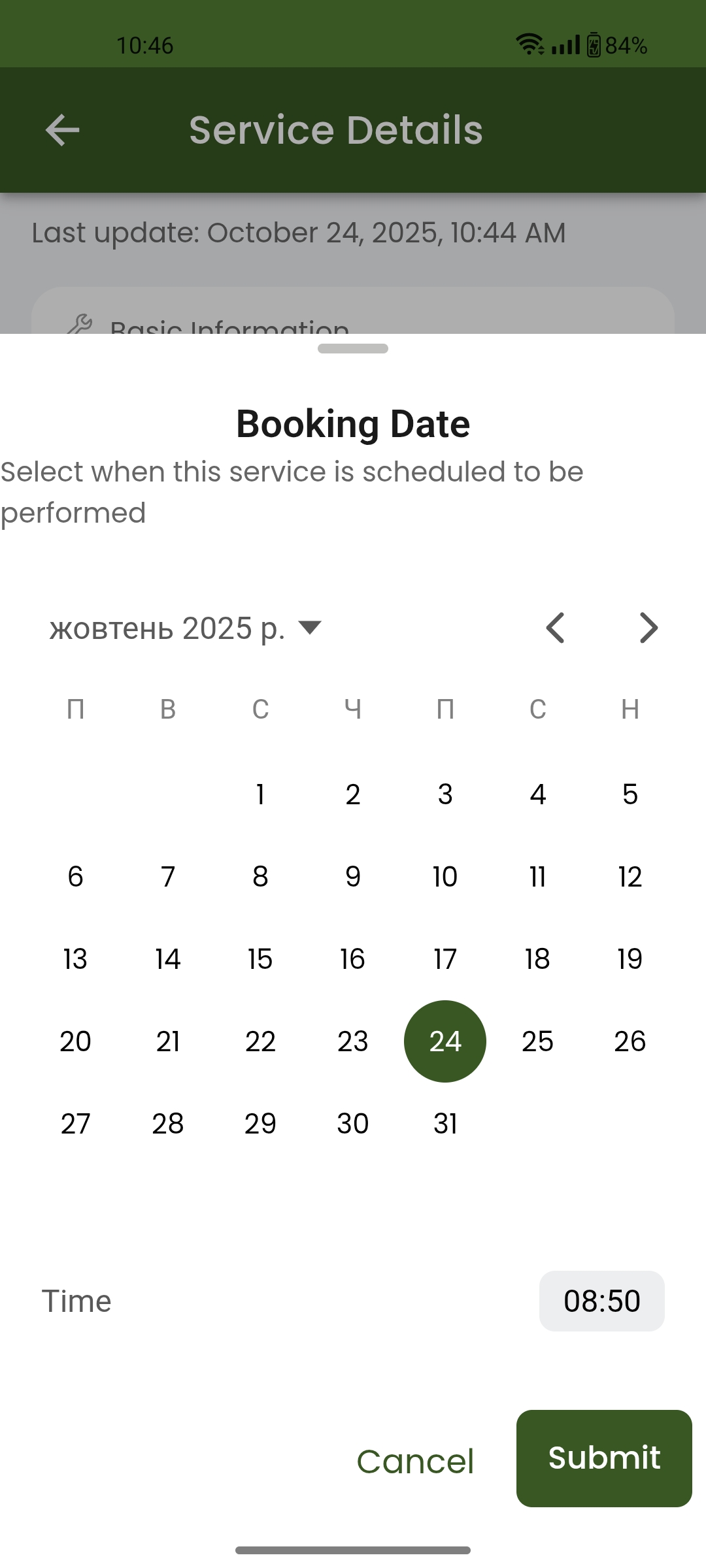
picture 1. - Click on 'Book Service'. Select the booking date 10/24/2025 and time 8:50. Click the 'Submit' button.
picture 2.
https://screenrec.com/share/JNwYmd0ZT3 - The 'CheckALLStatuses' task now has the status 'Opened'.
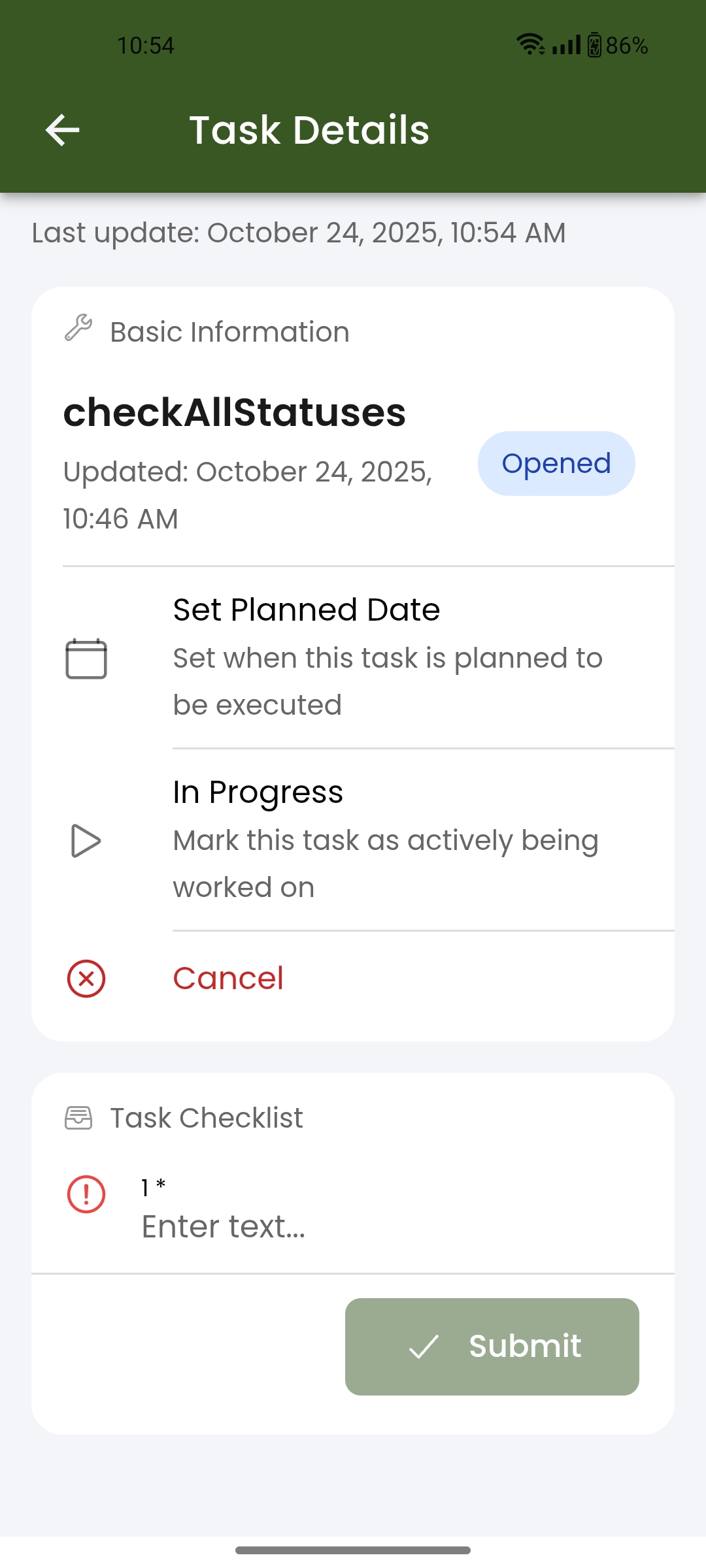
picture 3. - Click on the task.
- Click on 'Set Planned Date'. The 'Set Planned Date' page opens.
picture 4. - Select the date 10/24/2025 and time 18:00. Click the 'Submit' button.
picture 5. - The option 'Set Planned Date' disappears, the status does not change to 'Set Planned Date', but in the API request Task Detail, the information about the planned date appears.
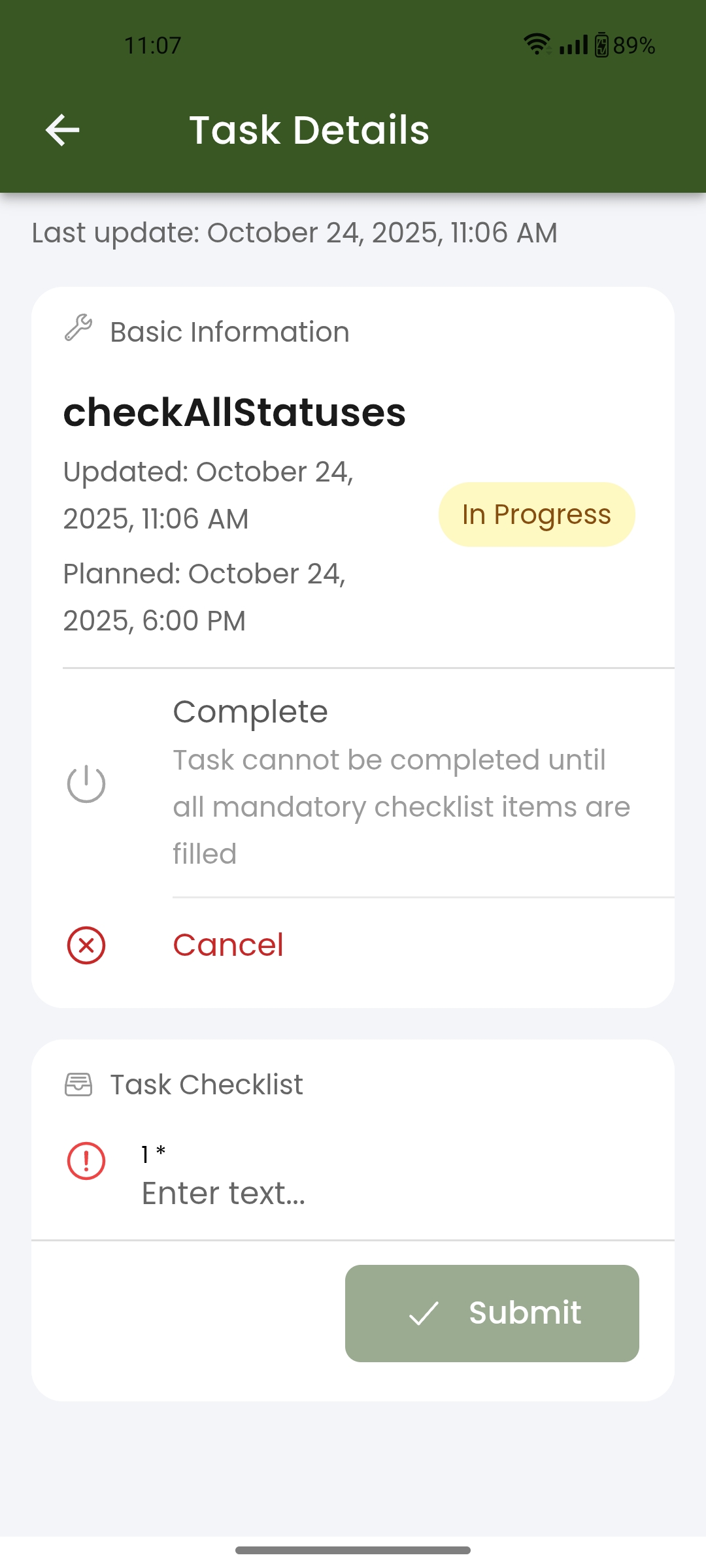
https://screenrec.com/share/0hvabU7V91 - Click on 'In Progress'. The 'In Progress' modal window opens. Click 'Yes'. The task status changes to 'In Progress'.
picture 6.
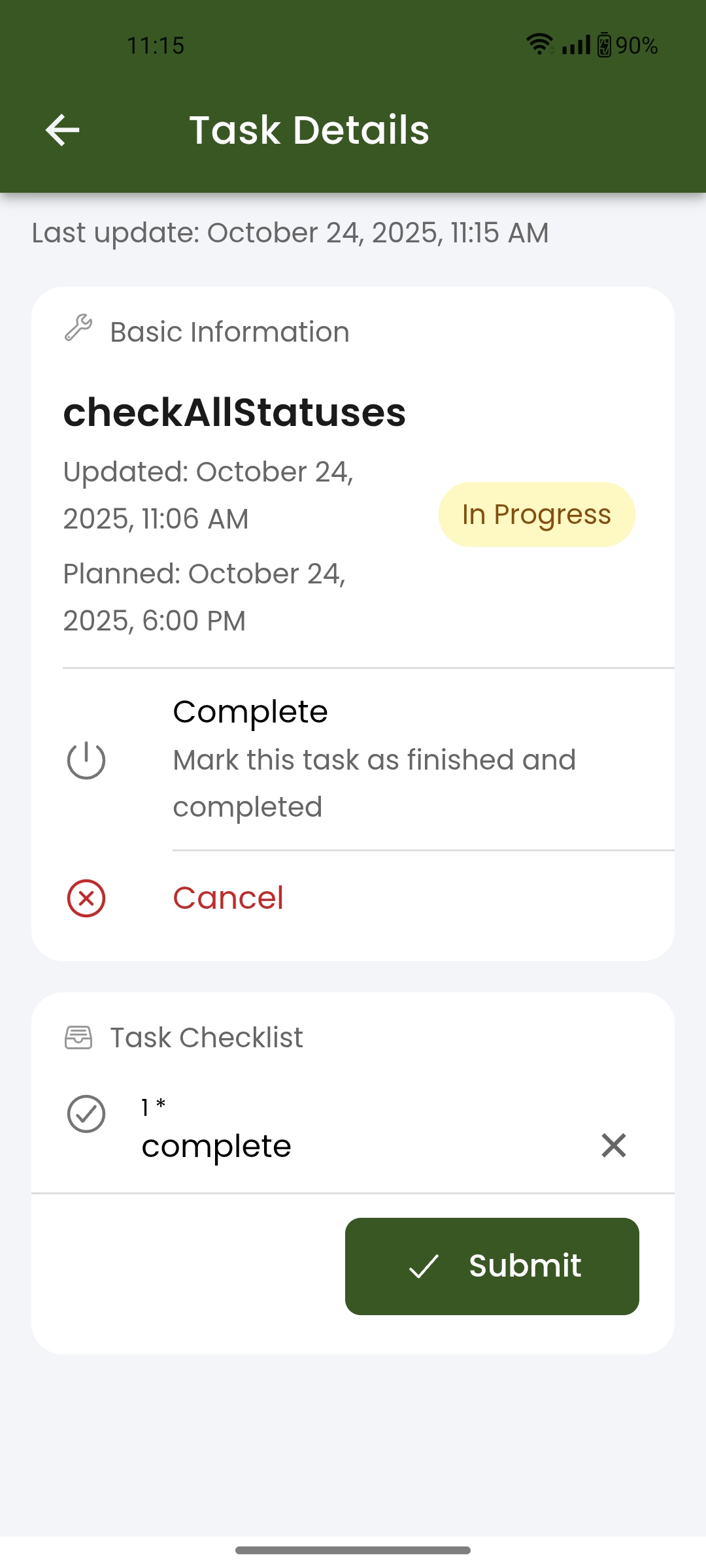
https://screenrec.com/share/8KRPsd2SuZ - Click on the task checklist. Enter text: complete. Click the 'Submit' button. The message 'Checklist update successful' appears.
picture 7. - Send the Get Task Details request. The checklist is marked as completed.
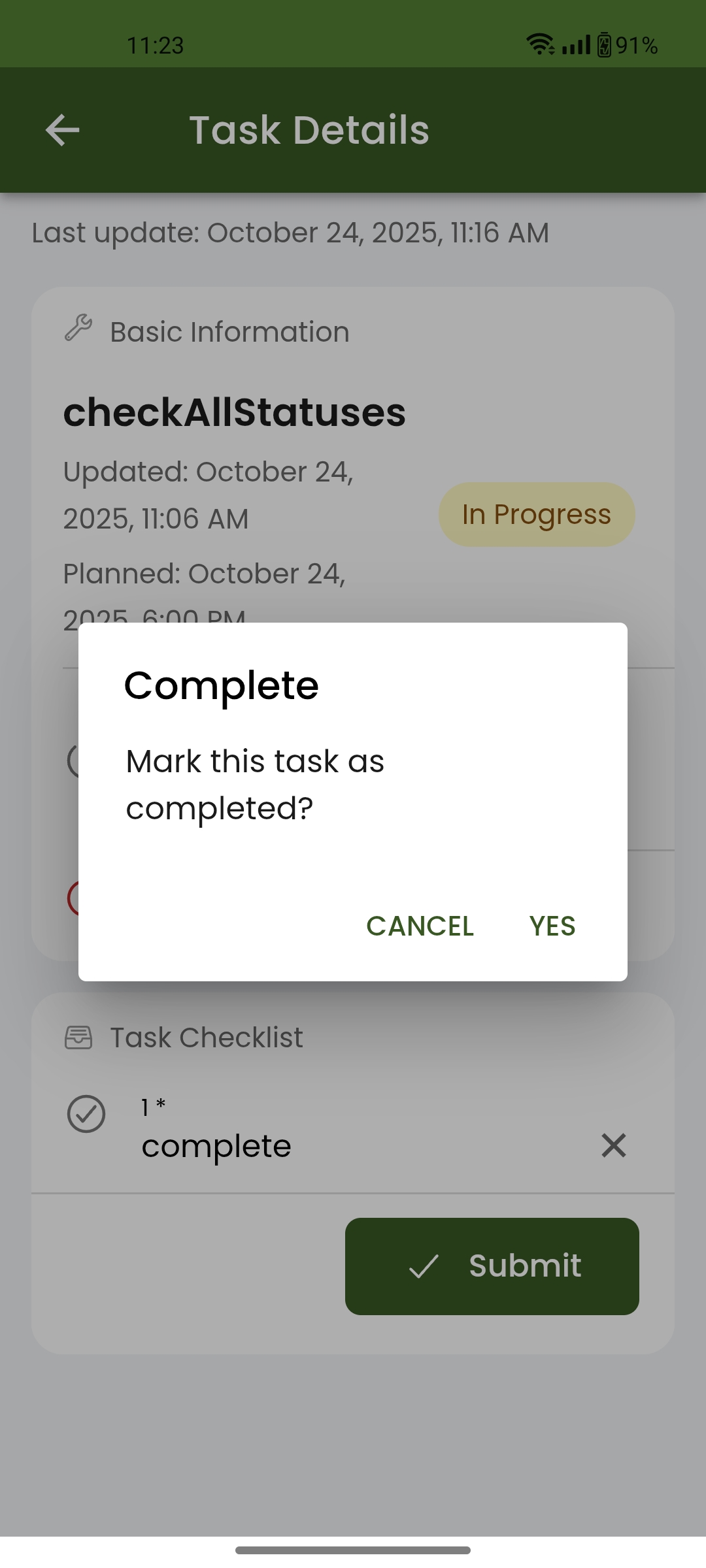
thttps://screenrec.com/share/r5pDbqRtHN - Click on the 'Completed' item on the 'CheckALLStatuses' task detail page.
- The 'Complete' modal window appears.
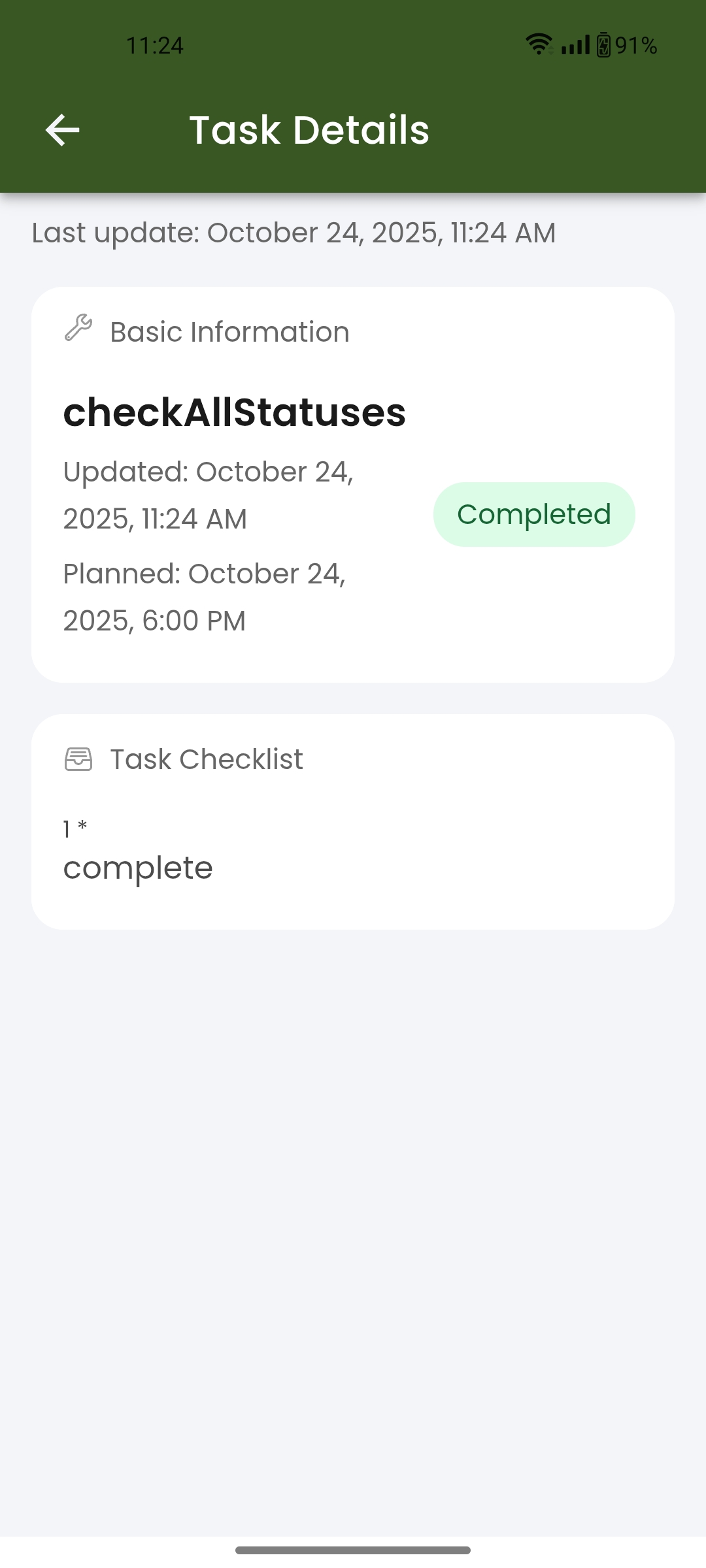
picture 8. - Click 'Yes'. The message 'Task completed successfully' appears, and the task status changes to 'Completed'.
- Send the Get Task Details request.
https://screenrec.com/share/aWcMYzR72Z - Click the 'Back' button on the task detail page.
picture 9. - Click on the 'Complete Service' item.
- The 'Complete Service' modal window appears. Click 'Yes'.
- The message 'Service completed successfully' appears. The service is marked as 'Completed'.
picture 10.
Task statuses: Created → Opened → In Progress → Completed
Service statuses: Created → Set Planned Date → Completed
- Create the Service (ID Service: 24533, VIN Vehicle: VIN: OLENA121212121212, Task ID: ). Status - Created.
https://screenrec.com/share/s7SJEDlrmi - Send request Get Service Detail. Response: Service status is 'Created.
https://screenrec.com/share/IUtqlc15Hy
Task ID: 42772, Status Created.
https://screenrec.com/share/TyiK3fQ9Ct - Open mobile bild. Vehicle with VIN: OLENA121212121212. Open task ' All Statuses (Mobile) 1 Status: 'Created'.
- Click on 'Book Service'. Select Booking Date 10/24/2025 and time 14:30. Click 'Submit' button.
- Send request Get Service Detail. Response: Service status is 'Booked'
https://screenrec.com/share/Wvrn9Rghtk - The 'CheckALLStatuses' task has status 'Opened'.
- Click on the task.
- Click on the 'In Progress'. The 'In Progress' modal window opens. Click on the 'Yes'. Status task change to 'In Progress'.
- Send request Get Service Detail. Response: Service status is '
https://screenrec.com/share/ay6r1Km7XD - Click on the task Check List. Complete the checklist . Click on the 'Submit' button. The 'Checklist update successefull' appears.
- Send reques Get Task Details. The checklist is marked as a completed. https://screenrec.com/share/f8q7rlKZHO
- Click on the 'Completed' item on the'checkAllStatuses' task Detail page.
- The 'Complete' modal windows appears.
- Click on the 'Yes'.The 'Task completed successefull' appears and status task changes to 'Completed'.
- Send reques Get Task Details. https://screenrec.com/share/qZFBvfbToI
- Click the 'Back' button on the Task Detail page.
- Click on the 'Complete Servise' item.
- The 'Complete Service' modal window appears. Click on the 'Yes'.
- The 'Service Completed successefully appears. The service is marked as a 'Completed'.
- Send Request Get Service Detail. (Service ID 24533). Response: https://screenrec.com/share/RFOdbl9hA5
- The Service has a status 'Completed'.
Task statuses: Created → Opened → In Progress → Completed
Service statuses: Created → Set Planned Date → Completed
-
Create the service (Service ID: 24534, Vehicle VIN: OLENA121212121212, Task ID: ). Status – Created.
https://screenrec.com/share/fYmxUgJEPs -
Send the Get Service Detail request. Response: Service status is 'Created'.
https://screenrec.com/share/N7QG1lPgVc
Task ID: 42773, Status – Created.
https://screenrec.com/share/OhE4VGUZ7X -
Open the mobile build. Find the vehicle with VIN: OLENA121212121212. Open the task 'All Statuses (Mobile) 2', Status: 'Created'.
-
Click on 'Book Service'. Select the booking date 10/24/2025 and time 14:30. Click the 'Submit' button.
-
Send the Get Service Detail request. Response: Service status is 'Booked'.
https://screenrec.com/share/8LMlKqVha2 -
The 'CheckALLStatuses' task now has the status 'Opened'.
-
Click on the task.
-
Click on 'Set Planned Date'. Select date and time.
-
Click on 'Cancel'. The 'Cancel Reason' page opens.
-
Select one of the reasons. Click 'Confirm the Cancellation'.
-
The 'Confirm the Cancellation' button is disabled. Add a comment in the 'Comment' field. Click 'Confirm the Cancellation' again.
-
The task status changes to 'Canceled'.
-
Send the Get Task Details request. Response:
https://screenrec.com/share/cPiGNEQWqO -
Click the 'Back' button on the task detail page.
-
Click on the 'Complete Service' item.
-
The 'Complete Service' modal window appears. Click 'Yes'.
-
The message 'Service completed successfully' appears. The service is marked as 'Completed'.
-
Send the Get Service Details request. Response:
https://screenrec.com/share/yuKZ8z5ItD -
The Service is marked as 'Completed'.
Task statuses: Opened → In Progress → Canceled
Service statuses: Created → Booked → Canceled -
Create the service (Service ID: 24538, Vehicle VIN: OLENA121212121212, Task ID: ). Status – Created.
-
Send the Get Service Detail request. Response: Service status is 'Created'.
https://screenrec.com/share/KhivSBf4Q8
Task ID: 42773, Status – Created.
https://screenrec.com/share/bnOyL48roR -
Open the mobile build. Find the vehicle with VIN: OLENA121212121212. Open the task 'All Statuses (Mobile) 3', Status: 'Created'.
-
Click on 'Book Service'. Select the booking date 10/24/2025 and time 14:30. Click the 'Submit' button.
-
Send the Get Service Detail request. Response: Service status is 'Booked'.
https://screenrec.com/share/hKaRLDtTdj -
The 'CheckALLStatuses' task now has the status 'Opened'.
-
Click on the task.
-
Click on 'In Progress'. The 'In Progress' modal window appears. Click 'Yes'.
-
Send the Get Task Details request. Response:
https://screenrec.com/share/V45I6sJu9n -
Click on 'Canceled'. The 'Cancel Reason' page opens.
-
Select one of the reasons. Click 'Confirm the Cancellation'.
-
The 'Confirm the Cancellation' button is disabled. Add a comment in the 'Comment' field. Click on the 'Attachment' field. Select 'From Photos'. Choose a photo from the computer. Click 'Confirm the Cancellation'.
-
The task status changes to 'Canceled'.
-
Send the Get Task Details request. Response:
https://screenrec.com/share/T4KD6ZxPp0 -
Click the 'Back' button on the task detail page.
-
Click on the 'Canceled Service' item.
-
The 'Cancel Reason' page opens.
-
Select one of the reasons. Click 'Confirm the Cancellation'.
-
The 'Confirm the Cancellation' button is disabled. Add a comment in the 'Comment' field. Click the 'Confirm the Cancellation' button. The service becomes 'Canceled'.
-
Send the Get Service Details request. Response:
https://screenrec.com/share/pFRo4IB7mPComplete the service when one task is completed and the other is canceled.
-
Create the service (Service ID: 24541, Vehicle VIN: OLENA121212121212, Task ID: ). Status – Created.
https://screenrec.com/share/LJryTOEVYB
Task IDs: 42780, 42781, Status – Created.
https://screenrec.com/share/jGE2pfgzsb -
Open the mobile build. Find the vehicle with VIN: OLENA121212121212. Open the task 'All Statuses (Mobile) 5', Status: 'Created'.
-
Click on 'Book Service'. Select the booking date 10/24/2025 and time 16:50. Click the 'Submit' button.
-
The service is marked as 'Booked' on the 'Service Detail' page.
-
Send the Get Service Details request. Response:
https://screenrec.com/share/xf0MJEuWG9
Task IDs: 42780, 42781, Status – Opened. -
Send the Get Task Details request. Response:
https://screenrec.com/share/Y6vFecN2XJ
https://screenrec.com/share/GWMxQ21rJa -
Click on the first task.
-
Click on 'Set Planned Date'. The 'Set Planned Date' page opens.
-
Select the date 10/24/2025 and time 18:00. Click the 'Submit' button.
-
The option 'Set Planned Date' disappears, and the status does not change to 'Set Planned Date', but in the API request Task Detail, the information about the planned date appears.
https://screenrec.com/share/AJUL9H2qt5 -
Click on 'In Progress'. The 'In Progress' modal window opens. Click 'Yes'. The task status changes to 'In Progress'.
-
Send the Get Service Details request. Response:
https://screenrec.com/share/cm65Pu9s3G -
Click on the task checklist. Complete the checklist. Click the 'Submit' button. The message 'Checklist update successful' appears.
-
Click on the 'Completed' item on the task detail page.
-
The 'Complete' modal window appears.
-
Click 'Yes'. The message 'Task completed successfully' appears, and the task status changes to 'Completed'.
-
Send the Get Task Details request.
https://screenrec.com/share/tn2VG0pASa -
Click the 'Back' button on the task detail page.
-
Click on the second task.
-
Click on 'In Progress'. The 'In Progress' modal window appears. Click 'Yes'.
-
Send the Get Task Details request. Response:
https://screenrec.com/share/xWwNieAD0K -
Click on 'Cancel'. The 'Cancel Reason' page opens.
-
Select one of the reasons. Click 'Confirm the Cancellation'.
-
The 'Confirm the Cancellation' button is disabled. Add a comment in the 'Comment' field. Click 'Confirm the Cancellation' again.
-
The task status changes to 'Canceled'.
-
Send the Get Task Details request. Response:
https://screenrec.com/share/JdRpY1mwN7 -
Click the 'Back' button on the task detail page.
-
Click on the 'Completed Service' item.
-
The 'Complete' modal window appears. Click 'Yes'.
-
Send the Get Service Details request. Response:
https://screenrec.com/share/HT4agksw83 -
The Service is marked as 'Completed'
Updated by Victoria Grishkova 8 months ago
- File app-release_488(2).aab app-release_488(2).aab added
- File app-debug_488(2).apk app-debug_488(2).apk added
test results were integrated. new builds (v.2) are attached.
Updated by Victoria Grishkova 8 months ago
- Status changed from QA Failed to Deployed (QA)
Updated by Olena Tretjakova 8 months ago
- Status changed from Deployed (QA) to Ready for Deployment (prod)
** Environment: Staging.**
-
Create the service (Service ID: 24538, Vehicle VIN: OLENA121212121212, Task ID: ). Status – Created.
-
Send the Get Service Detail request. Response: Service status is 'Created'.https://screenrec.com/share/KhivSBf4Q8
-
Task ID: 42773, Status – Created.https://screenrec.com/share/bnOyL48roR
-
Open the mobile build. Find the vehicle with VIN: OLENA121212121212. Open the task 'All Statuses (Mobile) 3', Status: 'Created'.
-
Click on 'Cancel'. The 'Cancel Reason' page opens.
-
Select one of the reasons. Click 'Confirm the Cancellation'.
-
The task status changes to 'Canceled'.
Actual Result: The acceptance criteria are completely done.
Updated by Vadim Pariev 8 months ago
- Status changed from Ready for Deployment (prod) to Closed
 Updated by Albert Katasonov about 2 months ago
- Project changed from 8 to Roos-fs-ZIP