roos-fs tasks #366
open

Manual import of the spare parts
0%
Description
We need functionality to manually add spare parts into the Warehouse without pre-assigned vehicle or service. This is required to preload stock for a customer. Only Name, Serial Number, and Customer are mandatory. Later, parts can be linked to vehicles and services during service tasks (via the Warehouse Picker workflow).
Acceptance Criteria
- Add manual entry functionality for spare parts into the Warehouse table. (see examples for the vechicles)
- Fields to enter: Name, Serial Number, Customer (mandatory), plus optional fields (from the templatethat are already developed .
- Type can be added or selected through a dropdown.
- Store parts in the Warehouse table with minimal required fields.
- Ensure spare parts are created with status “In Stock” by default.
- Edit of the spare part shall be possible
- Delete admin and add manually could be done only by the Admin
- Add a seperate columnt for the admin actions
If a Product with the same Name already exists: Newly added items should appear in the subtable for this product.
If the Product does not yet exist: A new entry in the main table is created, and all items with that product name are grouped under it
Files
 Updated by Vitalii Shevchenko
 Updated by Vadim Pariev 9 months ago
- Assignee changed from Vitalii Shevchenko to Ivan Danyliv
please alligne the implimentation with @vitalii.shevchenko@matecube.dev
Updated by Vadim Pariev 9 months ago
- Estimated time changed from 40:00 h to 15:00 h
Updated by Vadim Pariev 9 months ago
- Assignee changed from Vitalii Shevchenko to Ivan Danyliv
 Updated by Ivan Danyliv 9 months ago
- Status changed from In progress to In review
 Updated by Anton Obolientsev 9 months ago
- Status changed from In review to Open
Updated by Ivan Danyliv 9 months ago
- Status changed from In progress to In review
Updated by Anton Obolientsev 9 months ago
- Status changed from In review to Deployed (QA)
Updated by Vadim Pariev 9 months ago
Test result not OK
Move the button to this location to aalign the UI
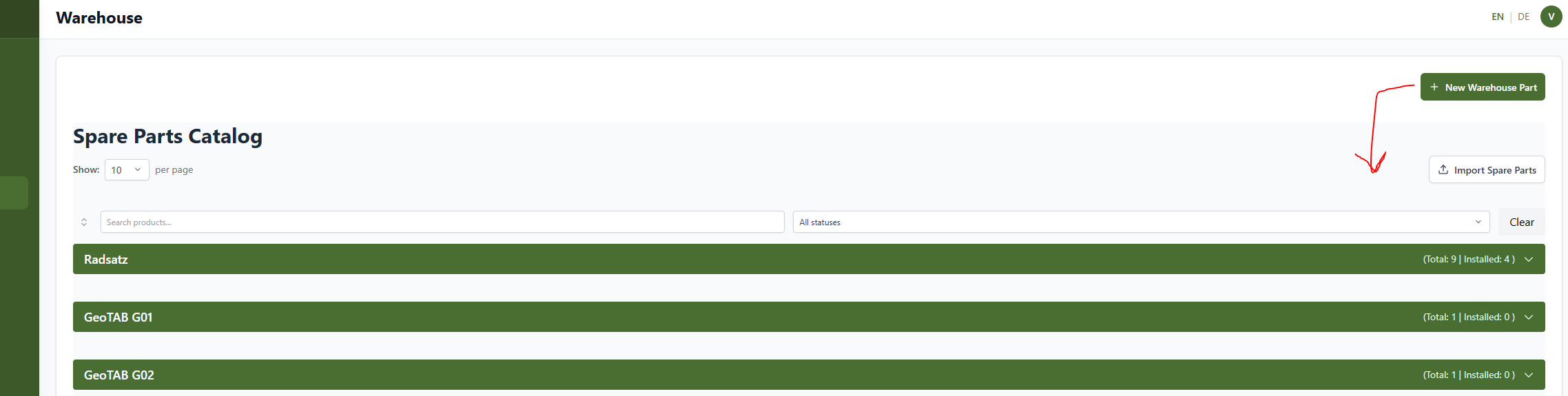
Updated by Vadim Pariev 9 months ago
when creating a spare part the 500 Error is dropped
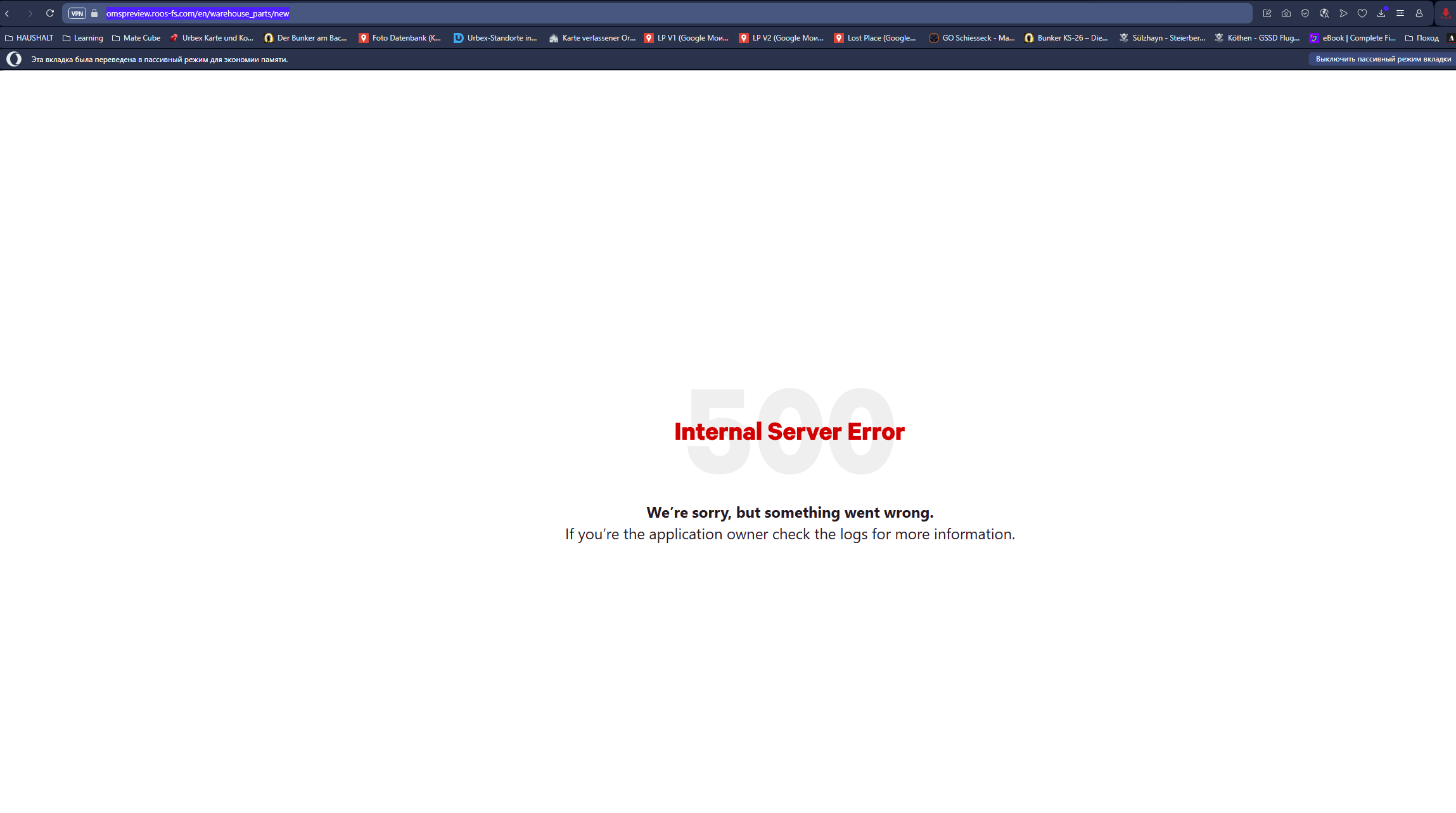
Updated by Vadim Pariev 9 months ago
- Status changed from Deployed (QA) to QA Failed
Updated by Ivan Danyliv 9 months ago
- Status changed from QA Failed to In progress
Updated by Ivan Danyliv 9 months ago
- Status changed from In progress to In review
Updated by Anton Obolientsev 8 months ago
- Status changed from In review to Deployed (QA)
 Updated by Olena Tretjakova 8 months ago
· Edited
Updated by Olena Tretjakova 8 months ago
· Edited
Environment: Staging
Preconditions:
The spare part should be in one of the product tables on the 'Warehouse' page and have the status 'Installed'.
Steps to Reproduce:
- Open the 'Warehouse' page. Open the Product table 'New Product'. The spare part with the serial number D0002 has the status 'Installed'.https://screenrec.com/share/a4VYBlOdAs
- Click on the 'Create New Warehouse Part' button.
- The 'Create New Warehouse Part' page openes. Fill the fields: Product: New Product; Serial Number: D0002; Customer: Tretjacova-company. Click the 'Create New Warehouse Part' button.
- The sapre part with serial number D0002 is not created. https://screenrec.com/share/S1HICxdmbf
- Open the 'Warehouse' page. Click on the 'Create New Warehouse Part' button.
- The 'Create New Warehouse Part' page openes. Fill the fields: Product: New Product; Serial Number: DC003; Customer: Tretjacova-company. Click the 'Create New Warehouse Part' button.
- Open the 'Spare Parts Catalog'. Open the 'New Product' table. The spare part with a serial number is created using only the required fields. https://screenrec.com/share/dPLwmuabk4
- Open the 'Warehouse' page. Click on the 'Create New Warehouse Part' button.
- The 'Create New Warehouse Part' page openes. Fill the fields: Product: New Product; Serial Number: D0004;
PSP: 001; Stocked Day 10/16/25; Status Day: 10/16/25; To Whom: Test Name; Ticket Number: 123;
Customer: Tretjacova-company; Assigned Service and Vehicle:1 (OLENA098765432112); Assigned Location:Depot Dresden.
Click the 'Create New Warehouse Part' button. - Open the 'Spare Parts Catalog'. Open 'New Product' table.The spare part with serial number D0004 is Created.
https://screenrec.com/share/NHPRhFMta7 - The 'Edit Warehouse Part' page openes. Fill the fields: Product: New Product; Serial Number: D0005;
PSP: 002; Stocked Day 10/16/25; Status Day: 10/16/25; To Whom: Test Name1; Ticket Number: 1234;
Customer: Tretjacova; Assigned Service and Vehicle:1 2123 (12312312312312312 - bmw test (1994)); Assigned Location:1. https://screenrec.com/share/XhOuIb8Kvr
Click the 'Create New Warehouse Part' button. - Open the 'Spare Parts Catalog'. Open 'New Product' table.The spare part with serial number D0004 is Created.
https://screenrec.com/share/NHPRhFMta7 - Sign up and Sign in with the role Manager.(Email: olena.tretjakova+2@matecube.dev Password: 0685577595Ol).
The user with this role can not delete, create and edit spare parts. - Sign up and Sign in with the role Fleet Manager.(Email: olena.tretjakova+5@matecube.dev Password: 0685577595Ol).The user with this role can not delete, create and edit spare parts.
- Sign up and Sign in with the role Sales Manager.(Email: olena.tretjakova+3@matecube.dev Password: 0685577595Ol).The user with this role can not delete, create and edit spare parts.
- Sign up and Sign in with the role Operator.(Email: olena.tretjakova+6@matecube.dev Password: 0685577595Ol).
The user with this role can not delete, create and edit spare parts. - Sign up and Sign in with the role Customer.(Email: olena.tretjakova+8@matecube.dev Password: 0685577595Ol).The user with this role can not delete, create and edit spare parts.
Expected Result:
- When the spare part already exists in the system and has the status 'Installed', it can be downloaded not only via the Excel table but also manually.
- Adding a spare part using only the required fields (Name, Serial Number, Customer).
- Adding a spare part using all fields . Type can be added or selected through a dropdown.
- Spare parts are created with status “In Stock” by default.
- Edit of the spare part shall be possible.
- Delete admin and add manually could be done only by the Admin.
- Add a seperate columnt for the admin actions.
Actual Result:
1.(Negative Test) When the spare part already exists in the system and has the status 'Installed', it can not be added to 'Spare Parts Catalog manually'.
2.(Positive Test) Adding a spare part using only the required fields (Name, Serial Number, Customer) is possible.
3. Spare parts are created with status “In Stock” by default.
4. (Negative Test) When hovering over the edit icon, instead of the “Edit” tooltip, an HTML code tooltip appears.
5. (Positive Test)Only the Admin can delete, create, and edit spare parts. The Edit and View icons are visible only to the Admin.
Updated by Ivan Danyliv 8 months ago
- Status changed from QA Failed to In progress
Updated by Ivan Danyliv 8 months ago
- Status changed from In progress to In review
Updated by Anton Obolientsev 8 months ago
- Status changed from In review to Open
Updated by Anton Obolientsev 8 months ago
- Status changed from In review to Open
Updated by Ivan Danyliv 8 months ago
- Status changed from In progress to In review
Updated by Anton Obolientsev 8 months ago
- Status changed from In review to Deployed (QA)
Updated by Olena Tretjakova 8 months ago
- Status changed from Deployed (QA) to Ready for Deployment (prod)
Environment: Staging.
All acceptance criteria were provided.
Preconditions:
The spare part with the serial number D0006 should exsist in system and has a status 'Installed'. https://screenrec.com/share/FGKRigd9fx
Steps to Reproduce:
- Open the 'Warehouse' page. Open the Product table 'New Product'. The spare part with the serial number D0006 has the status 'Installed'. Hover to the 'Edit' icon. The hint 'Edit' appears.
- Click on the 'Create New Spare Part' button.
- The 'Create New Spare Part' page openes. Fill the fields: Product: New Product; Serial Number: D0006; Customer: Tretjacova-company. Click the 'Create New Spare Part' button.
- The sapre part with serial number D0006 is created. https://screenrec.com/share/leimdtk7wr
Updated by Vadim Pariev 8 months ago
- Status changed from Ready for Deployment (prod) to Closed
Updated by Ivan Danyliv 3 months ago
- Assignee changed from Ivan Danyliv to Vadim Pariev
 Updated by Albert Katasonov about 2 months ago
- Project changed from 8 to Roos-fs-ZIP