Actions
roos-fs tasks #341
open

(PROJECT MANAGEMENT) Show statuses of all services in the project
Added by Vadim Pariev 10 months ago. Updated about 2 months ago.
Start date:
08/28/2025
Due date:
% Done:
0%
Estimated time:
12:00 h
Description
General
It is important for the users who use the projects to provide them with the overview of the statuses of the services.
Expected result
- the statuses (created, booked, completed, cancelled) of all the services (that were created though the project functionality) attached to the project are shown in the project overview as shown in the screenshot
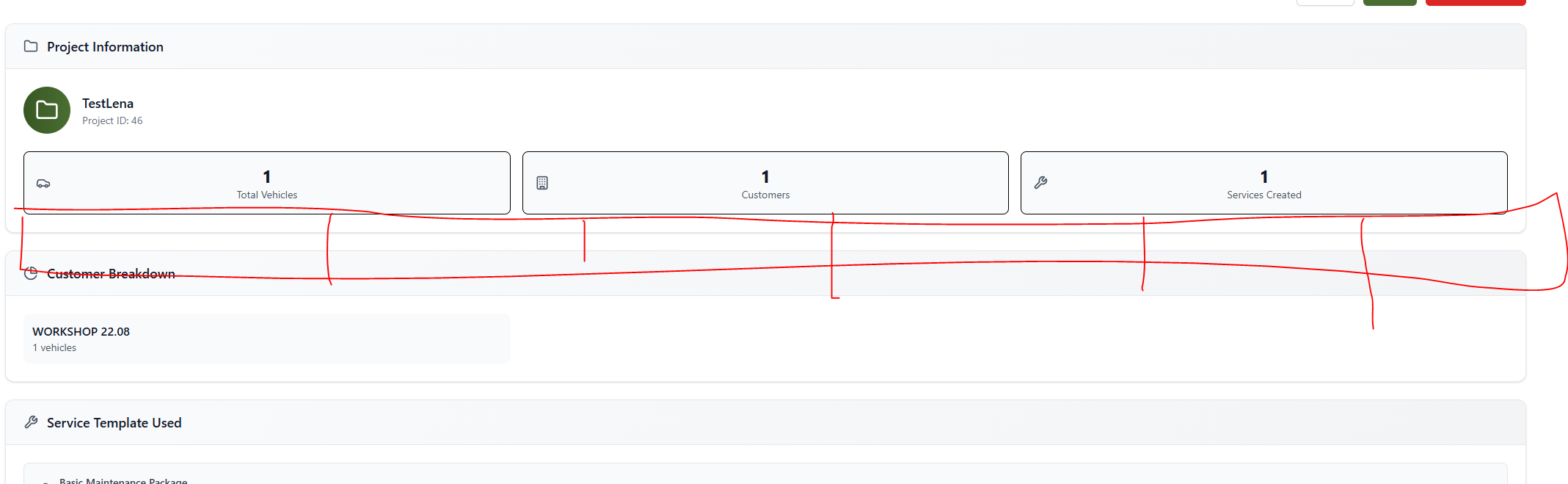
- reuse the icons of the statuses in use
- reuse the colorsceme used in the services
IMPLIMNET ONLY IF THE TASK FOR THE NEW WORKFLOW TICKET IST FINISHED
Files
| clipboard-202508282213-p7f3x.png (313 KB) clipboard-202508282213-p7f3x.png | Vadim Pariev, 08/28/2025 08:33 PM | ||
| clipboard-202508282251-dhcwp.png (188 KB) clipboard-202508282251-dhcwp.png | Vadim Pariev, 08/28/2025 09:12 PM | ||
| clipboard-202510051123-mxkfu.png (116 KB) clipboard-202510051123-mxkfu.png | Vadim Pariev, 10/05/2025 09:45 AM |


 Updated by Vadim Pariev 9 months ago
- Subject changed from (PROJECT MANAGEMENT) Show statuses of all services in the project + create a connection of the services and projects to (PROJECT MANAGEMENT) Show statuses of all services in the project
Updated by Vadim Pariev 9 months ago
- File clipboard-202510051123-mxkfu.png clipboard-202510051123-mxkfu.png added
- Description updated (diff)
Updated by Vadim Pariev 9 months ago
- Assignee changed from Anton Obolientsev to Ivan Danyliv
 Updated by Ivan Danyliv 8 months ago
- Status changed from In progress to In review
 Updated by Anton Obolientsev 8 months ago
- Status changed from In review to Deployed (QA)
 Updated by Olena Tretjakova 8 months ago
- Status changed from Deployed (QA) to Ready for Deployment (prod)
Environment: Staging.
The Expected Result and the Actual Result match.
Steps to Reproduce:
- Open the 'Projects' page. Click on the 'Create New Project' button. 'New project' page openes.
2.Fill the fields: Project Name: TestProject 10/16(1); Start Date 10/16/2025; End Date 10/17/2025; Service Template :'Eco-Friendly Service'. - Download the Excel Template. Prepaier the excel document to import vehicles.(vin: OLENA123456789009; OLENATRET77777777; OLENA121212121212).
- Click on the 'Select a file or drag and drop' field and upload the prepared file.
- Three vehicles are successufully added to project 'TestProject 10/16(1)'.
- Select 00FRR5VMV3CM1YN3D and click on the 'Add vehicles' button. The vehicle with the VIN 00430K6F2V51HZC8J is added.
- **Click on the 'Create Project' button. The 'ProjectTest 10/16(1)' Project Details page opens.https://screenrec.com/share/sLGlymqDYB
- Open the 'Services' page 4 services markt as a created.https://screenrec.com/share/4xeupGfSms
- Open the service for the vehicle with the VIN OLENA123456789009.
11.Click on the 'Book Service' button.(date: 10/16/2025 00:49 pm).
The Task on the curren page changes status to OPENED.
12.Click on the 'Planned Date' button in the task on the current page. - Select Planned Date and Planned Time in the Set Planned Date modal window. (data: 10/16/2025 00:50 pm). Click on the 'Set Planned Date' button.
- Click on the 'In progress' button in the task on the current page. Click on the 'In Progress' button on the 'In progress' modal window.
- The status of the task on the current page changes to IN PROGRESS.
17.Click on the view icon in the task on the current page. The Task Detail page opens.
Complete the checklist. - The checklist indicates 100% completed. The 'Complete' button becomes avalible.
- Click on the 'Complete' button on the current page. Click on the 'Complete' button in the 'Complete' modal
window. - Open the 'Eco-Friendly Service' Service Detail page.
- Click on the 'Complete Service' button on the current page. Click on the 'Complete Service' button in the 'Complete Service' modal window.
- Open the 'TestProject 10/16(1)' Project Details page. There are mark as CREATED 3 services and 1 as a COMPLETED.https://screenrec.com/share/8uOaKlFwhQ
- Open the service for the vehicle with the VIN OLENA121212121212 .
23.Click on the 'Book Service' button.(date: 10/16/2025 06:10 pm).
24.Open the 'TestProject 10/16(1)' Project Details page. There are mark as CREATED 2 services, BOOKED 1 and 1 as a COMPLETED.https://screenrec.com/share/tnTm2W5Z9j - Open the service for the vehicle with the VIN OLENATRET77777777.
23.Click on the 'Cancel' button.
24.Open the 'TestProject 10/16(1)' Project Details page. There are mark as CREATED 1 services, BOOKED 1 and 1 as a COMPLETED and 1 CANCELLED.
https://screenrec.com/share/2e1g9cqQIi
Expected Result:
- The statuses (created, booked, completed, cancelled) of all the services (that were created though the project functionality) attached to the project are shown in the project.
Actual Result:
The Statuses and there changes dysplay on the 'Project Details' page.
Updated by Anton Obolientsev 8 months ago
- Status changed from Ready for Deployment (prod) to Closed
Updated by Ivan Danyliv 3 months ago
- Assignee changed from Ivan Danyliv to Vadim Pariev
 Updated by Albert Katasonov about 2 months ago
- Project changed from 8 to Roos-fs-ZIP
Actions