roos-fs tasks #311
open

(MOBILE) (STORAGE) Warehouse Picker in Service Task
0%
Description
User story
A Monteur must install a device/spare part assigned to the customer’s vehicle. The part type may repeat across customers, but serial numbers are unique. Only parts with status In Stock and assigned to that customer/vehicle are selectable. On service completion, the selected part becomes Installed and links back to Service and Vehicle.
Expected result
- Implement the Warehouse Picker UI + logic inside the Service Task, including:
- Rendering the field in the task checklist
- Selecting a spare part (filtered by customer attached to the vechicle and stock) - dropdown
- Entering and validating a serial number (preshow the numbers with the similar code)
- Blocking progression on invalid customer/serial
MORE FLOW INFO refer to the other tickets with the (STORAGE) in the name + @Vadim Pariev
Files
 Updated by Victoria Grishkova 8 months ago
- Status changed from Open to In progress
Updated by Victoria Grishkova 8 months ago
- Status changed from In progress to Deployed (QA)
Updated by Victoria Grishkova 8 months ago
- File app-debug_311.apk app-debug_311.apk added
- File app-release_311.aab app-release_311.aab added
builds are attached
 Updated by Olena Tretjakova 8 months ago
- File Screenshot_2025-10-31-09-35-17-01_334366aa60c95a830342eca788ba1737.jpg Screenshot_2025-10-31-09-35-17-01_334366aa60c95a830342eca788ba1737.jpg added
- Status changed from Deployed (QA) to QA Failed
Environment: Staging.
Actual Result:
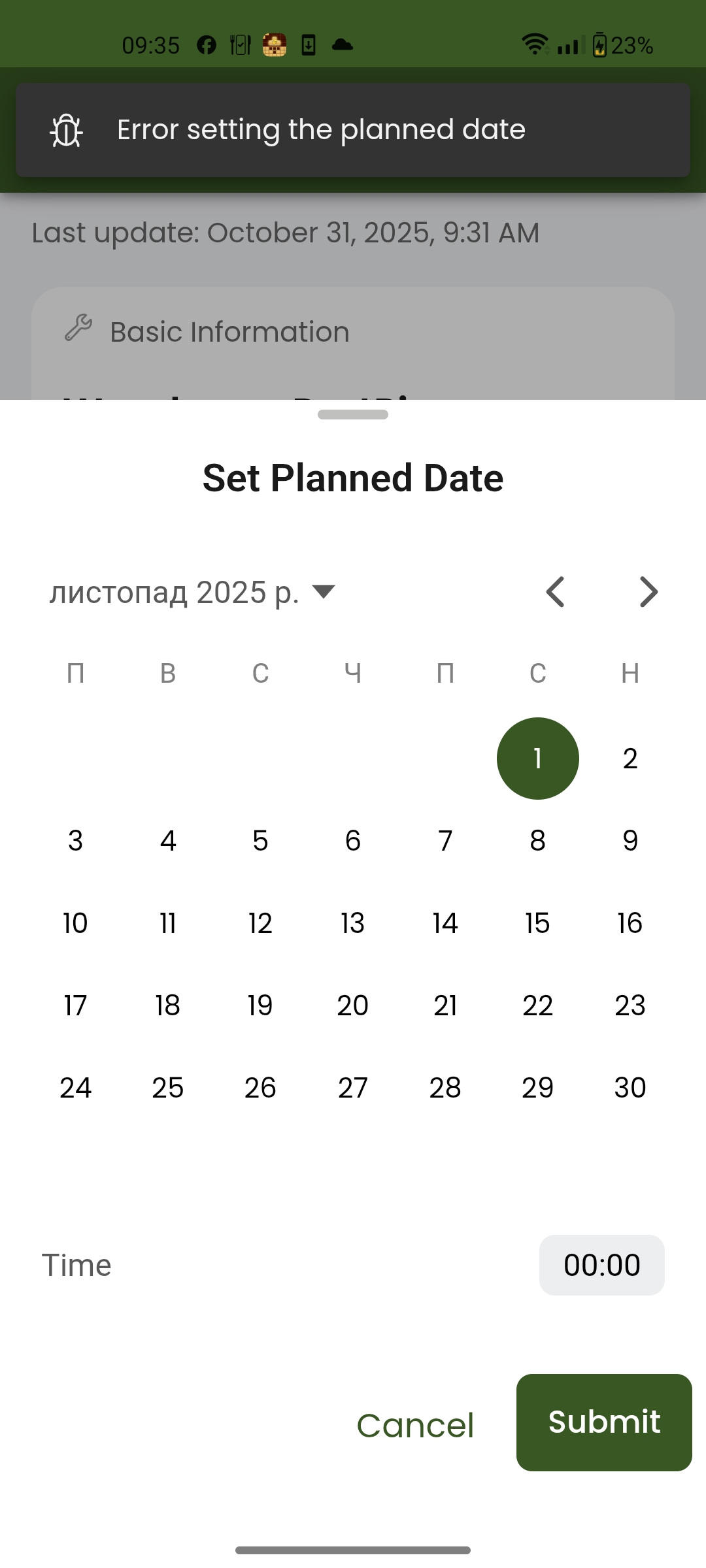
The build stops working at the stage of setting the planned date.
Steps to Reproduse:
- Create the 'sp 1' service.(Vehicle: OLENA121212121212 (1999), task: WarehousePartPicker).
- Open mobile bild. Select Vehicle: OLENA121212121212 (1999), Service sp 1.
- Click 'Open' 'Warehouse Part'. Click Set Planned Date and select 10/31/2025. The message error settings the planned date appears.
Updated by Victoria Grishkova 8 months ago
@olena.tretjakova@matecube.dev
new status flow is not available here yet, please, test only the new field, without changing the task/service states.
Updated by Victoria Grishkova 8 months ago
- Status changed from QA Failed to Deployed (QA)
 Updated by Vadim Pariev 8 months ago
- Status changed from Deployed (QA) to Ready for Deployment (prod)
Updated by Olena Tretjakova 8 months ago
Environment: Staging.
** Actual Result:**
- The service status can be change Created - Booked - Completed
Created - Booked - Canceled - The task status can be changed Created(Automaticly) - In progress - Completed
- After completed service the spare part changes status from 'In Stock' to 'Installed'.
- The 'Installed' spare part is not displayed in the spare parts list when selecting from the checklist in the Warehouse Part Picker field.
Step to Reproduce:
- Create a new Servicw.(Name: WP 1, Service ID: 24599, Customer: Tretjacova-company, Assigned Vehicle: OLENA121212121212 (1999).
- Status of 'WR 1' service changed to 'Created'. Click on the 'Book'. The Status becomes 'Booked'.
- Open bild app-debug_dev_1.2.0.apk
- Select the Vehicle OLENA121212121212 (1999). Select 'WR 1' srrvice. Service Detail page opens.
- Click on the 'TestWarehousePicker' in Tasks section. The Task Detail page opens.
- Click on the 'Set Planned Date' button in the task on the current page.
Select Planned Date and Planned Time in the Set Planned Date modal window. (data: 10/31/2025 17:20 pm). Click on the 'Set Planned Date' button. - The task Detail page opens status of task 'Opened'.
- Send request Get Task Detail (Task ID 42859).
- Response : https://screenrec.com/share/zZJM9l10Bd
- Click on the 'In progress' button . Click on the 'Yes' button on the 'In progress' modal window.The status of the task on the current page changes to IN PROGRESS.
- Send request Get Task Detail (Task ID 42859).
- Response: https://screenrec.com/share/SC60IkEOcb status task 'In progress'
- Click the 'TestWarehousePicker' task in Task Checklist section.
- Select D006 Spare Part. Click on the 'Confirmation Selection' button.Click on the 'Submit' button.
- Click on the 'Complete' task button. The 'Complete'modal window opens. Click 'Yes' button.
- Open 'Service Detail' page. The task marked as 'Completed.
- Send request Get Task Detail (Task ID 42859).
- Response: https://screenrec.com/share/tkjvgsRzXa status task 'Completed'.
- Click on the 'Complete' service. The 'Complete' modal window opens. click on the 'Yes'.
- Service 'WR 1' marked as 'Completed.
- Send request Get Service Detail (Service ID 24599).
- Response: https://screenrec.com/share/HmpLnO2SsP status service 'Completed'.
- The spare part D006 is 'Installed'. https://screenrec.com/share/lQVN2CSMhP
Trying to use in service the spare part with status 'Installed'
- Create a new Servicw.(Name: WP 2, Service ID: 24600, Customer: Tretjacova-company, Assigned Vehicle: OLENA121212121212 (1999).
- Status of 'WR 2' service changed to 'Created'. Click on the 'Book'. The Status becomes 'Booked'.
- Open bild app-debug_dev_1.2.0.apk
- Select the Vehicle OLENA121212121212 (1999). Select 'WR 2' srrvice. Service Detail page opens.
- Click on the 'TestWarehousePicker' in Tasks section. The Task Detail page opens.
- Click on the 'In progress' button . Click on the 'Yes' button on the 'In progress' modal window.The status of the task on the current page changes to IN PROGRESS.
- Send request Get Task Detail (Task ID 42860).
- Response: https://screenrec.com/share/z8sS2ATaDk status task 'In progress'
- Click the 'TestWarehousePicker' task in Task Checklist section.
- Select 'D006' in the search field. The spare part does not appear in the Customer Spare Parts list.
- Select A0003. lick on the 'Confirmation Selection' button.Click on the 'Submit' button.
- Click on the 'Complete' task button. The 'Complete'modal window opens. Click 'Yes' button.
- Open 'Service Detail' page. The task marked as 'Completed.
- Send request Get Task Detail (Task ID 42860).
- Response: https://screenrec.com/share/uC7erDhHop status task 'Completed'.
Trying cancel service when the task is completed.
19. Open Service Detail page. Click on the Cancel service button. Select the Cancelation Reason. Click Confirmation button.
20. The service is 'Cancelled'.
21. Send request Get Service Detail(Service ID 24600).
22. Response: https://screenrec.com/share/B1nEwiRyxF service status 'Canceled'.
23. Spare part D006 is 'In Stock'. https://screenrec.com/share/I7ErYOo1tJ
Updated by Vadim Pariev 8 months ago
- Status changed from Ready for Deployment (prod) to Closed
 Updated by Albert Katasonov about 2 months ago
- Project changed from 8 to Roos-fs-ZIP