roos-fs tasks #309
open
(STORAGE) Add a new checklist item (Warehouse picker)
Added by Vadim Pariev 10 months ago.
Updated about 2 months ago.
Assignee:
Vitalii Shevchenko
Description
General
A Monteur is at the location and needs to install the correct device/spare part or spare part. The device/spare part type may be the same, but the serial number is unique. The Monteur is obliged to install the device or spare part that was assigned to the customer whose vehicle is being serviced.
Expected result
TASK CREATION/EDITING AND ADDING TO THE TEMPLATE
- a new field type is introduced called "Warehouse picker"

- When selected and added to the checklist the user can Provide a name for the field as well as the description (see other fields implimentaions)
- upon adding the user can arrange the items (already present)
FUNCTIONALITY ON THE OPENED SERVICE INSIDE OF THE TASK
- user selects the spare part from the dropdown list
NOTE: in this case we check what spare parts are assigned to this customer (we can do that through the vechicle object). This infromation is to be stored in the Warehouse (in the sparepart object; see the table implimentation)
- as soon as the spare part is selected the user can enter the serial number
NOTE: in this case we check what spare parts are assigned to this customer based on the serial number (we can do that through the vechicle object + based on the type selected before). This infromation is to be stored in the Warehouse (in the sparepart object; see the table implimentation). In addition the itme, shall have a status "In Stock". Otherwise it would not be shown at all.
- we do not allow to proceed if the serial number provided is from another customer (not the one that is assigned to this vechicle)
FUNCTIONALITY AFTER SERVICE COMPLETION
- as soon as the service where this fileds were filled out receive a status "completed" the spare part in the table form the warehouse receives a status "Installed"
- the spare part receives a vechicle entry in the table (where the service with the field was completed)
- the Service is stated (the one where the spare part was used)
- Entries - Service, vechicle, location, customer are hyperlinks that lead to the stated object in the system.
Other requirements
- all ui items are supported in english and German
Files
- Assignee set to Vitalii Shevchenko
- Status changed from Backlog to Open
- Description updated (diff)
- Subject changed from (STORAGE) Add a new checklist item (Sparepart selector) to (STORAGE) Add a new checklist item (Warehouse picker)
- Estimated time set to 120:00 h
- Status changed from Open to In progress
- Status changed from In progress to In review
- Status changed from In review to Open
- Status changed from Open to In review
- Status changed from In review to Open
- Status changed from Open to In review
- Status changed from In review to Deployed (QA)
Test Result Critical not OK
STR 1
- Create a tasks template with the warehouse picker and assign it to the customer "CUSTOMER MATECUBE TEST"
- select a car with the same customer and create a service with the task and the warehouse picker
- go to open service and try to select and submit the spare part
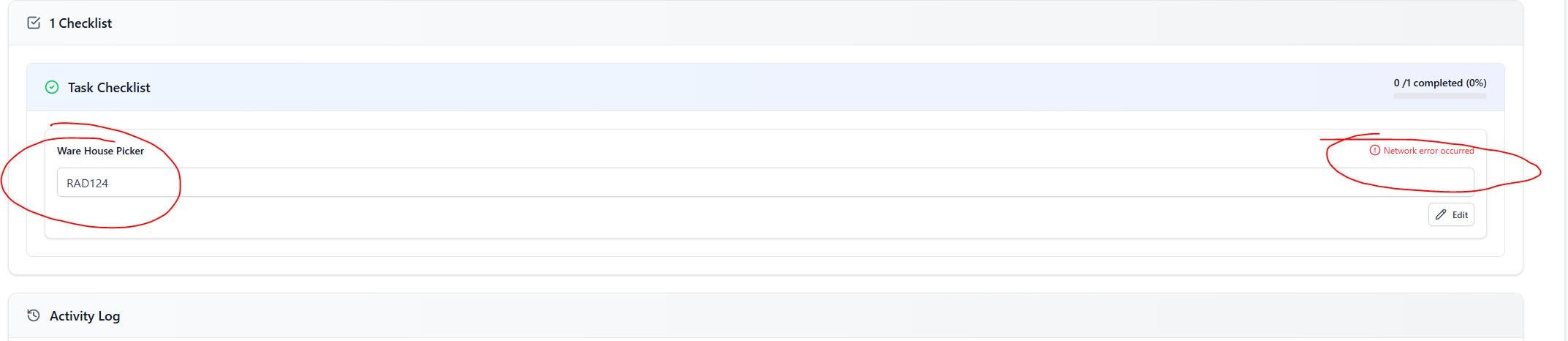
- Select the spare part
The error that the user can not understand aoccur and user is blocked
- Status changed from Deployed (QA) to QA Failed
- Status changed from QA Failed to In review
- Status changed from In review to Deployed (QA)
Environment:
- OS: Windows 11 Version 24H2 for x64-based systems(KB5065426) (26100.6584)
- Browser: Chrome 140.0.7339.186 (Official Build) (64-bit)
- Platform: Desktop
- Executor: Tretjacova Olena
Preconditions:
User has a permission to create Task.
Steps to Reproduse:
-
Open the 'Tasks' page.
-
Click on the '+ Create new Task Template'.
-
Task Name : WareHouseTaskTemp(1);
Customer: Test Lead;
Checklist Name: WareHouse Test;
-
Click on the '+ Add Checklist field'.
-
Fill the Fields:
'Field Name' field : '1';
'Field Type': 'Warehouse part picker'
-
Click on the 'Create Task' button. Task Template is created. https://screenrec.com/share/iKnDSeJavy
-
Open 'Services' page. Click on the '+ Create new Service' button.
-
Fill the Fields:
'Name': Test10/07(5);
'Vehicle' : OLENA098765432112;
'Select Task Template' : WareHouseTaskTemp(1);
-
Click the 'Add Task' button;
-
Click the 'Add Service' button. The Service was created.
-
The 'Services' page is opened.
-
Click on the 'WareHouseTaskTemp(1)' name in the services table.
-
The 'Service Detail' page is opened.
-
Click on the 'Book Service ' button. Select 10/07/2025. Click on the 'Book Service' confirmation button.
-
Click on the 'in progress ' button in '1 Task' section. Click on the 'in progress' confirmation button.
-
Click on the 'eye ' button in '1 Task' section. The 'Task Details' page is opened'. Click the 'Edit' button.
-
Fill the 'test field ' field in '1 Check list' section. Dropdown is opened . Select the field (RADt126) and click 'Submit. CheckList is comleted. https://screenrec.com/share/2Kzd1WnFI5
-
Click the 'Complete' button at the top of the page.
-
Click the 'Complete' button inthe confirmation modal window.
-
Open 'Services' page. Click the 'Test10/07(5)' the name of service in the table. The Sevice Detail page is opened.
-
Click the 'Complete' button at the top of the page.
-
Click the 'Complete' button inthe confirmation modal window. The Sevice 'Test 10/07(5) is completed. https://screenrec.com/share/sjwYOG4XpT
Expected Result:
The Detaile statuse using in the service is changed from 'In stock' to 'instaled' after the service was completed.
Actual Result:
The Detaile statuse using in the service is changed from 'In stock' to 'instaled' after the service was completed.
- Status changed from Deployed (QA) to QA Failed
- Status changed from QA Failed to Ready for Deployment (prod)
- Status changed from Ready for Deployment (prod) to Closed
- Project changed from 8 to Roos-fs-ZIP
Also available in: Atom
PDF


 Updated by
  Updated by Vitalii Shevchenko
  Updated by
  Updated by Olena Tretjakova
  Updated by